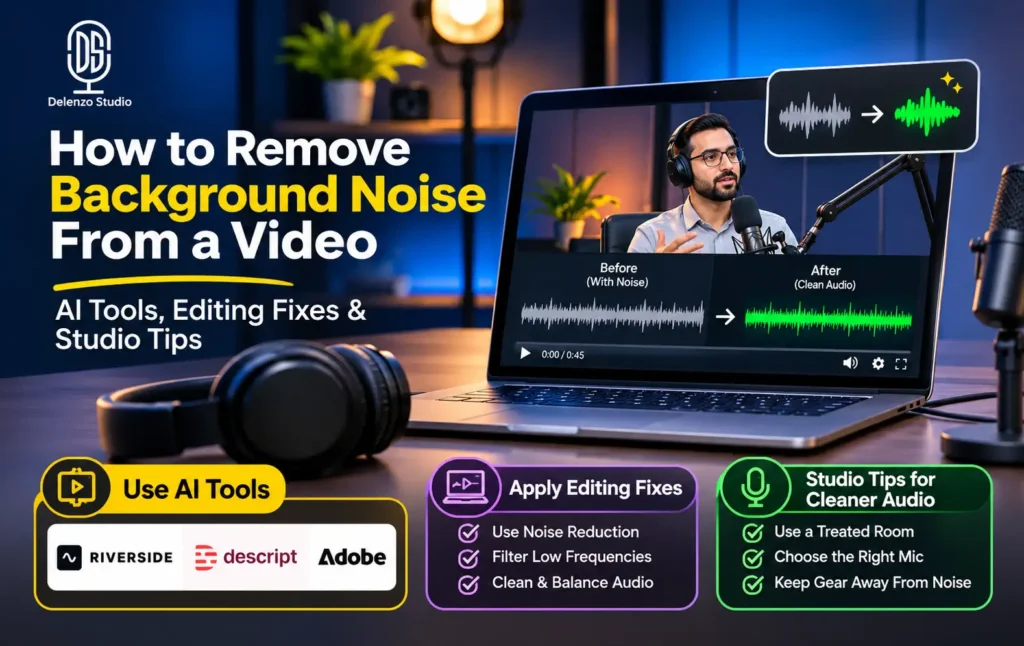
Background noise can make an otherwise good video sound unprofessional. Fan hum, traffic, keyboard clicks, room echo, wind, and low-quality microphone noise distract viewers and reduce the clarity of your message.
The good news is that you can remove or reduce background noise from a video using AI tools, manual audio editing, and better recording practices. For quick cleanup, tools such as Riverside Magic Audio and Descript Studio Sound can help. For professional podcasts, interviews, and business videos, preventing noise during recording is still the most reliable solution.
What Is Background Noise in a Video?
Background noise is any unwanted sound that competes with the main voice or dialogue in your video. It can come from the recording room, equipment, environment, or editing process.
Common examples include:
- Air-conditioner or fan hum
- Traffic and street noise
- Keyboard clicks and mouse sounds
- Room echo and reverb
- Wind noise during outdoor recording
- Electrical interference or static
- Microphone handling noise
- Background conversations or office noise
- Low-frequency hum from cables or power sources
Background noise removal is the process of reducing or eliminating these unwanted sounds so the speaker’s voice becomes clearer.
Why Clean Audio Matters
Viewers may forgive average video quality, but poor audio is harder to ignore. Unclear dialogue, echo, hum, and background noise make viewers rewind, increase playback speed, or leave the video early.
Clean audio is especially important for:
- Podcasts and interview videos
- YouTube talking-head videos
- Corporate presentations
- Online courses and tutorials
- Voice-over videos
- Sales and product videos
- Social media Reels and Shorts
- Client testimonials and brand interviews
AI cleanup can improve a rough recording, but it cannot fully repair audio that was recorded badly in the first place. The best results come from controlling noise before you press record.
Best Ways to Remove Background Noise
There are three main ways to fix noisy video audio:
| Method | Best for | Main benefit | Main limitation |
| AI audio cleanup | Quick fixes, social videos, remote recordings | Fast, beginner-friendly cleanup | Can create artifacts if overused |
| Manual audio editing | Podcasts, interviews, client work | More control and precision | Takes more time and skill |
| Professional studio recording | Important brand and business content | Prevents noise before it happens | Requires booking and planning |
AI tools are useful for reducing noise after recording, but a controlled studio environment helps you avoid many audio problems before they occur
Fix Noise Before Recording
The cheapest and most effective noise-reduction method is prevention. Before recording, check your room, microphone, and audio settings.
Choose a quiet recording space
Avoid rooms with traffic noise, open windows, fans, air conditioners, or hard reflective surfaces. Smaller rooms with soft furnishings usually produce less echo than empty rooms with bare walls.
Position the microphone correctly
Keep the microphone close to the speaker—generally around 15–20 cm away for many podcast setups. A closer mic lets you lower the input gain, which reduces room noise and background pickup.
Reduce gain and avoid clipping
Do not set microphone gain too high. High gain makes quiet background sounds more noticeable. Record a short test clip and listen with headphones before starting the full session.
Turn off unnecessary devices
Switch off fans, air conditioners, notifications, and nearby electronics where possible. If you must keep the AC on, record a separate room-tone sample so your editor can identify the noise profile more easily.
Use a professional studio for important content
For podcasts, interviews, brand videos, and client-facing content, a sound-treated studio reduces echo, external noise, and inconsistent audio quality. Delenzo Studio provides podcast, photo, video, and event spaces in Lahore with professional equipment and on-site support for creators and businesses.
Best AI Tools for Background Noise Removal
AI tools are ideal when you need to clean up a video quickly without spending hours in an audio editor. They are especially useful for talking-head videos, interviews, podcasts, and voice-over recordings.
| AI tool | Best for | What it helps fix | Official link |
| Riverside Magic Audio | Podcasts, interviews, remote recordings | Background noise, reverb, volume balance, voice clarity | Riverside Magic Audio |
| Descript Studio Sound | Talking-head videos, interviews, voice-overs | Background noise, echo, reverb, dialogue clarity | Descript Studio Sound |
| Adobe Premiere Pro | Professional video editors | Noise reduction, reverb reduction, audio levels, presets | Adobe Premiere noise removal [adobe] |
Riverside Magic Audio
Riverside Magic Audio is an AI-powered audio enhancer designed to improve recordings made with basic microphones or in imperfect rooms. It can reduce background noise, balance sound levels, and improve voice clarity.
Riverside also provides a “Remove background noise” option during export. This is particularly useful for steady noise such as a computer fan or air conditioner.
Best use case: Podcast recordings, remote interviews, YouTube videos, and social clips that need fast cleanup.
Important: Apply AI cleanup carefully. Strong processing can make a voice sound unnatural, thin, or robotic if the original recording has severe noise or distortion.
Descript Studio Sound

Descript Studio Sound is an AI audio effect that reduces background noise, echo, and distractions in spoken recordings. It works on audio and video files and includes an intensity control so you can balance cleanup with natural voice quality.
Descript is especially useful for creators who edit videos using text. After importing a video, the platform transcribes speech, allowing you to locate noisy sections and apply Studio Sound to the relevant clip.
Best use case: Talking-head videos, interviews, tutorials, online courses, and voice-over videos.
Important: Studio Sound is designed for spoken voice, not music mastering. It may not be the right solution for music-heavy videos or complex sound design projects.
Adobe Premiere Pro
Adobe Premiere Pro offers more manual control through its Essential Sound panel. You can assign audio as Dialogue, Music, Sound Effects, or Ambiance, then use Reduce Noise and DeNoise tools to clean up the track.
Premiere is a better choice when you need precise control over dialogue, music, sound effects, and multiple audio tracks in one project.
Best use case: Professional video editors, agencies, corporate videos, and multi-track productions.
How to Remove Background Noise From a Video
Follow this simple workflow before exporting your final video.
- Import the video into your editor or AI tool
Use Riverside, Descript, Premiere Pro, or your preferred editing software. - Listen with headphones
Identify the type of noise: steady hum, echo, clicks, wind, traffic, or background voices. - Apply AI cleanup first
Turn on Magic Audio, Studio Sound, or your editor’s noise-reduction feature at a moderate setting. - Compare before and after
Play the same section with cleanup on and off. If the voice sounds unnatural, reduce the intensity. - Use manual tools for remaining noise
Apply a high-pass filter for low rumble, noise reduction for hiss, and a noise gate for silence between sentences. - Balance dialogue levels
Make sure every speaker is easy to understand. Avoid making one speaker much louder than another. - Check on different devices
Listen on headphones, phone speakers, and laptop speakers before exporting. - Export in the correct format
For most social and web videos, use an MP4 file with high-quality AAC audio. For podcast distribution, follow your hosting platform’s recommended audio specifications.
Manual Editing Fixes That Still Matter
AI is fast, but manual editing gives you more control—especially for professional podcast and video production.
- High-pass filter: Removes low-frequency rumble, such as traffic vibration or HVAC hum.
- Noise reduction: Reduces consistent hiss, hum, or static.
- Noise gate: Lowers background sound during pauses, though it should be used gently.
- EQ: Improves voice clarity by reducing muddy low frequencies or harsh high frequencies.
- Compression: Makes quiet and loud parts of speech more consistent.
- De-esser: Reduces sharp “s” and “sh” sounds.
- Reverb reduction: Helps when dialogue sounds distant or hollow.
Adobe recommends using its Essential Sound panel to categorize audio and apply noise and reverb reduction where needed.
When AI Noise Removal Is Not Enough
AI cleanup works well for mild to moderate noise, but it has limits. It may struggle with:
- Loud traffic or construction noise
- Severe wind distortion
- Clipping or distorted audio
- Multiple people speaking over each other
- Heavy echo in a large untreated room
- Music mixed too loudly with dialogue
- Audio recorded with a broken or low-quality microphone
In these cases, re-recording is often better than trying to repair severely damaged audio. For interviews and brand videos, booking a controlled studio session can save editing time and produce more consistent results.
Studio Recording vs AI Cleanup
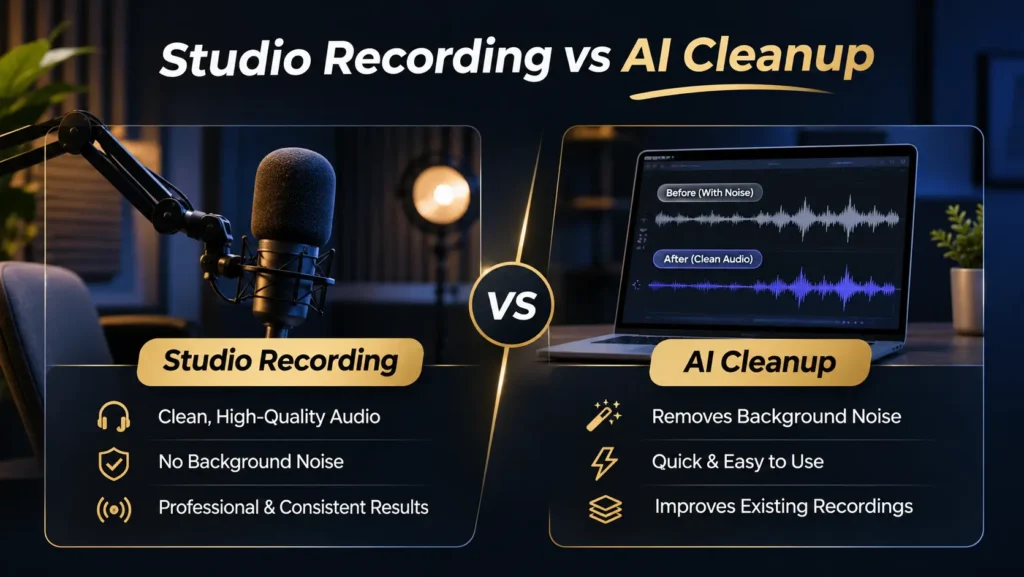
| Factor | AI cleanup | Professional studio recording |
| Speed | Fast | Requires scheduling |
| Cost | Usually lower for one-off fixes | Higher upfront, but better for recurring content |
| Noise prevention | Cleans noise after recording | Reduces noise before recording |
| Voice naturalness | Depends on processing level | Usually more natural |
| Multi-speaker control | Limited to tool features | Better with proper mics and engineering |
| Best for | Social clips, quick fixes | Podcasts, brand videos, interviews |
AI cleanup is a helpful safety net, but it should not replace good recording practices. The strongest workflow is to record cleanly first, then use AI or manual editing only for final polish.
Background Noise Removal Checklist
Before publishing your video, check the following:
- No constant hum, hiss, or fan noise
- Dialogue is clear without heavy processing
- No distracting echo or reverb
- Volume levels are consistent across speakers
- No clipping or distorted peaks
- Music does not overpower speech
- Audio sounds natural on phone speakers and headphones
- Exported file matches your platform’s recommended settings
Need Professional Audio for Your Video?
AI tools can clean up a noisy recording, but professional recording prevents many audio problems before they start. Delenzo Studio offers podcast, photo, video, and event spaces in Lahore, with professional equipment and on-site support for creators, startups, and businesses.
Need clean audio for your next podcast, interview, or brand video? Book a professional recording session at Delenzo Studio in Lahore.
FAQ
Yes. AI tools such as Riverside Magic Audio and Descript Studio Sound can reduce background noise, echo, and uneven volume in video audio. They work best for spoken dialogue and mild-to-moderate noise.
Riverside Magic Audio is a strong option for quick podcast and interview cleanup, while Descript Studio Sound is useful for talking-head videos and voice-over editing. Adobe Premiere Pro is better for editors who need detailed manual control.
Sometimes, but not always. AI can reduce most unwanted sounds, but severe distortion, clipping, loud traffic, or heavy echo may be impossible to repair completely. Re-recording in a controlled environment is often the better option.
Use a quiet room, keep the microphone close to the speaker, reduce microphone gain, turn off fans and notifications, and avoid reflective empty rooms. A sound-treated studio provides more consistent results for professional content.
It can. If you apply too much noise reduction, voices may sound thin, robotic, or unnatural. Use moderate settings and compare the cleaned version with the original before exporting.