Sending your Gmail password to a freelance editor so they get YouTube channel manager access feels like a small favour. Then one day the editor’s laptop gets hacked, and your email, Drive and channel are all exposed together.
You don’t need to take that risk. YouTube Studio has a built-in way to grant YouTube Channel Manager Access to a manager, editor or agency through their own Google account. They do the work. Your password stays with you.
This guide walks you through the exact steps on desktop and mobile. It explains what each role can do, which role fits which person, and how to cut access cleanly when a project ends.
Quick Answer: Can You Give YouTube Channel Manager Access Without a Password?
Yes. YouTube Studio offers built-in permission roles, so you can share YouTube channel access without password sharing. The person you invite signs in with their own Google account and works on your channel from there.
This setup protects you in two ways:
- No full Google Account exposure. Sharing a password hands over your email, Drive, Photos, other linked services and your security settings. Permissions only open the YouTube channel.
- Clear tracking. Every action taken through a permission role is tied to the person who did it. With a shared password, you can’t tell who uploaded, deleted or changed anything.
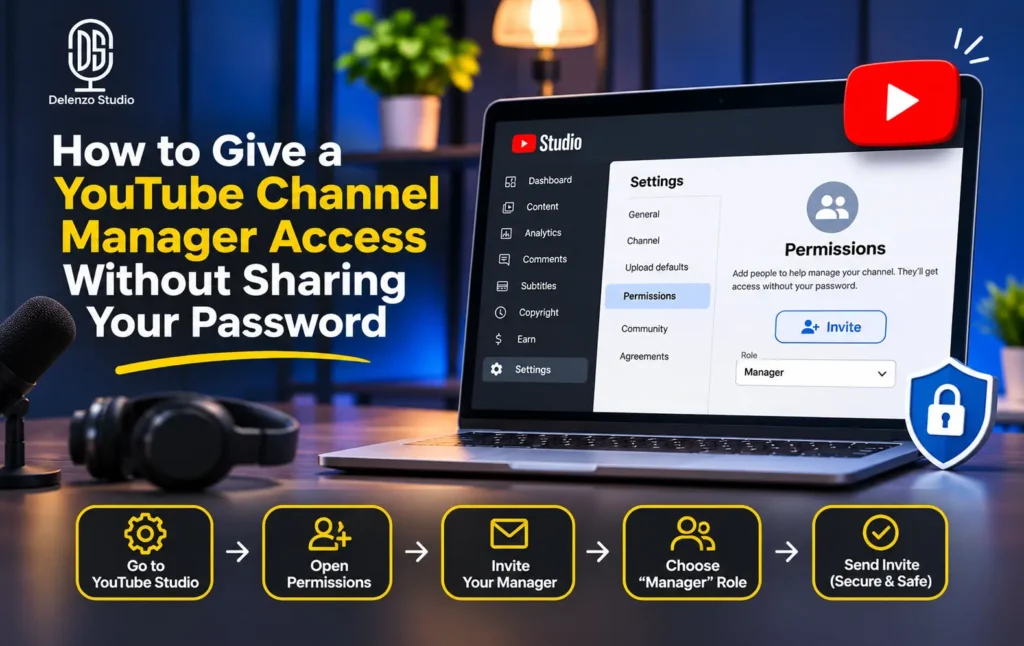
Step-by-Step: How to Invite Someone in YouTube Studio
YouTube channel permissions live in one place inside Studio: Settings, then Permissions. You can reach this menu from a computer or from the YouTube Studio mobile app. The flows differ slightly, so follow the one that matches your device.
On a Computer
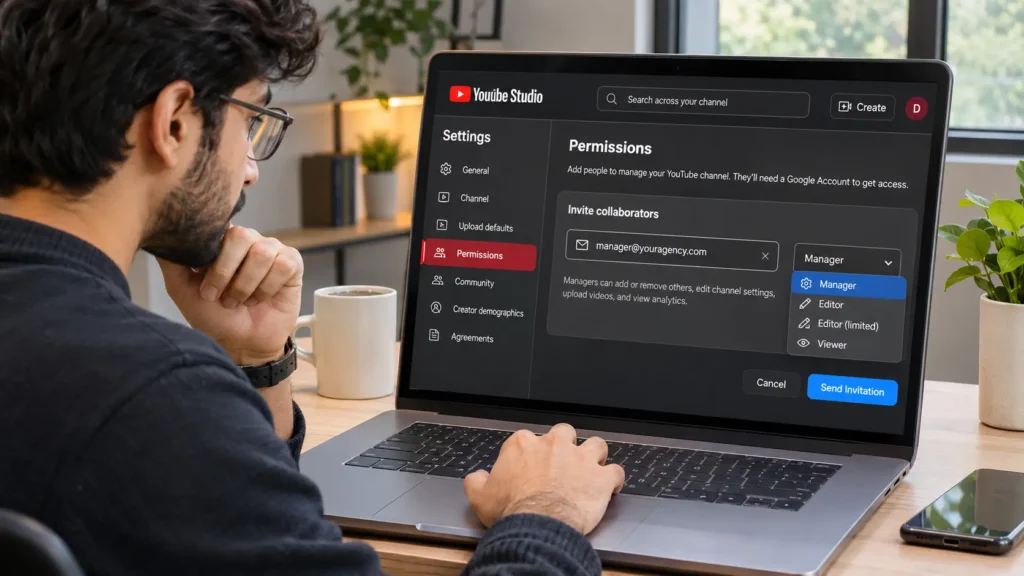
- Go to studio.youtube.com and sign in as the channel owner.
- Click Settings in the left menu.
- Open the Permissions tab.
- Click Invite.
- Enter the person’s email address. It must be linked to a Google account.
- Select a role from the dropdown.
- Click Done.
- Click Save to actually send the invitation.
On the YouTube Studio Mobile App
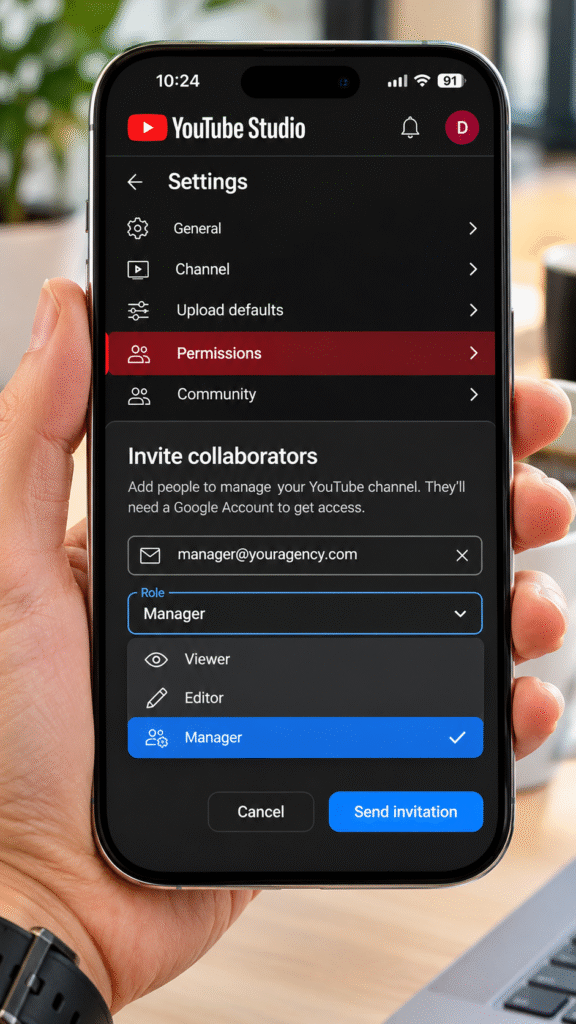
- Open the YouTube Studio app.
- Tap your profile picture.
- Tap Settings, then Permissions.
- Tap Invite.
- Type the person’s email address.
- Choose the role.
- Tap Send invitation, then tap Send to confirm.
The Step Most Guides Skip
Clicking Done does not send anything. The invite only goes out after you click Save on the Permissions screen. Many owners close the window after Done and then wait days for an invite that was never sent.
What the Invited Person Needs
The email you enter must belong to a Google account. A plain Outlook or company address with no Google account attached won’t work. If that Google account has never used YouTube, the person may need to create a basic channel before they can accept it.
YouTube Manager vs Editor vs Viewer: What Each Role Can Actually Do
Many creators assume a person called a “channel manager” should get the Manager role. That is a common mistake. A job title describes someone’s work. A YouTube role decides their power over your channel, and those are two different things.
Here’s how each role compares:
| Role | Can View Analytics | Can Upload/Edit/Delete Content | Can See Revenue Data | Can Manage Permissions | Can Delete the Channel |
|---|---|---|---|---|---|
| Manager | Yes | Yes (including drafts) | Yes | Yes | No |
| Editor | Yes | Yes (cannot delete published videos/channel) | Yes | No | No |
| Editor (Limited) | Yes | Yes (cannot delete published videos/channel) | No | No | No |
| Subtitle Editor | No (subtitles only) | Subtitles only | No | No | No |
| Viewer | Yes | No | Yes | No | No |
| Viewer (Limited) | Yes | No | No | No | No |
The biggest YouTube Manager vs Editor difference is control over who else gets in. A Manager can invite and remove people. An Editor can’t. A Manager can also delete published videos, while an Editor can only delete drafts.
Only the Owner Can Delete the Channel
Every client should know this before inviting anyone. Only the owner can delete the channel. A Manager can’t, despite the powerful-sounding name. Your channel’s existence always stays in your hands.
What “Limited” Really Means
The word “Limited” sounds vague, but its meaning is specific. Editor (Limited) and Viewer (Limited) have the exact same abilities as their full versions. The only difference is that revenue data stays hidden.
So an Editor (Limited) can still upload, edit and publish videos and delete drafts. They just can’t see what those videos earn. This makes it a good fit for outside freelancers.
Which Permission Role Should You Give an Editor or Agency?
Don’t pick Manager by default just because someone calls themselves a YouTube channel manager. Before you hand out YouTube Channel Manager Access, list the tasks that person will actually handle. Then choose the lowest role that covers those tasks.
Use this task-based guide:
- Freelance video editor who uploads and edits videos: Editor. Choose Editor (Limited) if they don’t need to see earnings.
- Transcriber or captioning service: Subtitle Editor only. They need nothing beyond subtitles.
- Business partner or stakeholder checking performance: Viewer. They can study analytics without touching any video.
- Someone who invites or removes collaborators for you: Manager. Keep this for a high-trust relationship, since this role controls who else has access.
Quick role picker: match the task, not the job title
Start with the lowest role that covers the work. You can upgrade later.
Freelance video editor
Editor
Editor (Limited) if earnings stay private
Captions or transcripts
Subtitle Editor
Subtitles only, nothing else
Partner checking performance
Viewer
Viewer (Limited) to hide revenue
Trusted lead who adds people
Manager
High-trust only, controls access
Remember: after choosing a role, click Done and then Save. Unaccepted invites expire after 30 days.
A simple rule helps here. Give people the access their tasks need, and nothing extra. You can always upgrade a role later. Undoing damage is much harder.
Knowing how to manage YouTube channel access this way pays off as your team grows. It also helps agencies learn how to manage multiple YouTube channels. One Google account can hold different roles on many channels. The account switcher in Studio moves between them without any shared passwords.
Before inviting an editor or agency, agree on the tasks they will handle and choose the appropriate channel permissions. If you need ongoing support with publishing, video optimization, thumbnails and reporting, explore Delenzo Studio’s YouTube channel management services to review the available service scope.
Troubleshooting: Invitation Not Received or Not Accepting
An invite that never shows up is frustrating. The cause is usually simple. Work through these checks in order:
- Check spam and Promotions folders. YouTube invites often land in Gmail’s Promotions tab or the spam folder.
- Confirm the email is linked to Google. An invite sent to an address with no Google account fails silently. Nobody gets an error message.
- Confirm you clicked Save. Clicking Done alone does not send the invite. This is the single most common reason an invite never arrives.
- Watch the 30-day limit. An unaccepted invitation expires automatically after 30 days. This isn’t a bug. Simply send a fresh invite.
- Look for the Permissions tab. If you can’t see it, your channel may still use old Brand Account roles. Complete the “Move Permissions to YouTube Studio” migration first.
When all five checks pass, ask the invited person to sign in with the exact Google account you invited. People often open the invite while logged into a different Gmail.
How to Remove a Channel Manager’s Access When a Project Ends
Removing access is a normal part of working with freelancers and agencies. Contracts end. Teams change. Access should end with them, not stay open for months.
Here’s how to remove YouTube channel manager rights or any other role:
- Open YouTube Studio and go to Settings.
- Click Permissions.
- Find the person in the collaborator list.
- Change their role to a lower one, or remove their access completely.
- Click Save.
Build a Review Habit
Don’t wait for a project to end before checking your list. Review channel permissions every few months. You’ll often spot a former editor or an old agency account that nobody remembered to remove.
A quick quarterly check takes two minutes. It closes doors you forgot were open.
Need Help Managing Your YouTube Channel?
Adding a team member is only the first step. You also need a clear workflow for content approvals, uploads, optimization and performance reporting. Explore YouTube channel management at Delenzo Studio and discuss which tasks you want to delegate before granting access.
For channels that need help with growth and search, our guide to YouTube SEO in Pakistan covers ranking basics. If you’d rather hand over the full production cycle, look at our YouTube automation service. Creators who shoot in Lahore can also book our video studio or podcast studio in Gulberg V.
Final Thoughts
Channel permissions let you hand off real work without sharing a password. Uploading, editing, reporting and even inviting others can all happen through separate Google accounts. The key is matching each role to actual tasks, not to a job title.
Still, permissions are safer, not risk-free. YouTube Channel Manager Access still gives a person real power over your content. Judge each person’s trustworthiness, pick the lowest role that works, and review your list regularly. That keeps your channel controllable as your team grows.
Want a team to handle uploads, optimization and reporting for you?
Explore YouTube Channel ManagementFrequently Asked Questions
Yes. Open YouTube Studio, go to Settings, then Permissions, and invite them by email. They sign in with their own Google account and get only the role you assign. Your password stays private.
The Manager role can invite and remove other people. The Editor role cannot. Both can upload, edit and publish videos and view analytics, but only a Manager can delete published videos and control who else gets channel access.
A YouTube Studio invitation lasts 30 days. If the person doesn’t accept it within that window, it expires automatically. Send a fresh invite from Settings, then Permissions, and remember to click Save.
No. Channel permissions give access only inside YouTube Studio. Brand Account roles work at the Google account level and can reach beyond YouTube. For editors and agencies, Studio permissions are the safer, more limited option.
Go to Settings, then Permissions, in YouTube Studio. Find the person in the collaborator list, then remove their access or lower their role. Click Save so the change applies right away.